Online exam supervision ('online proctoring') is essential to verify the identity of the candidate in a remote exam and to prevent fraud. The exam itself is identical and taken in the exam platform.
Supervision and monitoring is carried out by a supervisor via a private and secure online environment: ProctorExam. Through this web application, the supervisor can watch live while you, the participant, take the exam, but it is also possible to watch recordings at a later time. Online exam supervision and its secure data processing are facilitated for OmniDrones Academy by an external service provider.
If you get stuck somewhere in the manual, please visit our FAQ page. Under the Proctor heading are most of the solutions.
Installing ProctorExam
The description below summarises the requirements of the online proctoring process and goes through the requirements for your computer or laptop so that you are then ready for the real exam. These steps are NOT recorded and are separate from the real exam. After completing these steps, the email with the link to the exam will be sent.
First, install the latest version of Google Chrome on your laptop or computer. Chrome can be downloaded from this link and you can check which version of Chrome you have here.
Log in to the OmniDrones Academy student page via the Google Chrome browser.
Register for the exam via: My account -> My courses -> Open A2 -> Exam OPEN A2 -> Register for the exam.
You will then receive an email from ProctorExam titled: 'Please register for your exam' (also keep an eye on your spam box). You will then be asked:
The ProctorExam Chrome plug/in to be downloaded from the URl in the email
Complete the system check via the URL in the email. You will then be asked to approve allowing your plug-in to start recording your computer's screen, microphone and web traffic during the exam.
Please note that the exam cannot be opened if VPN or a Firewall is used! Please disable this or use another computer.
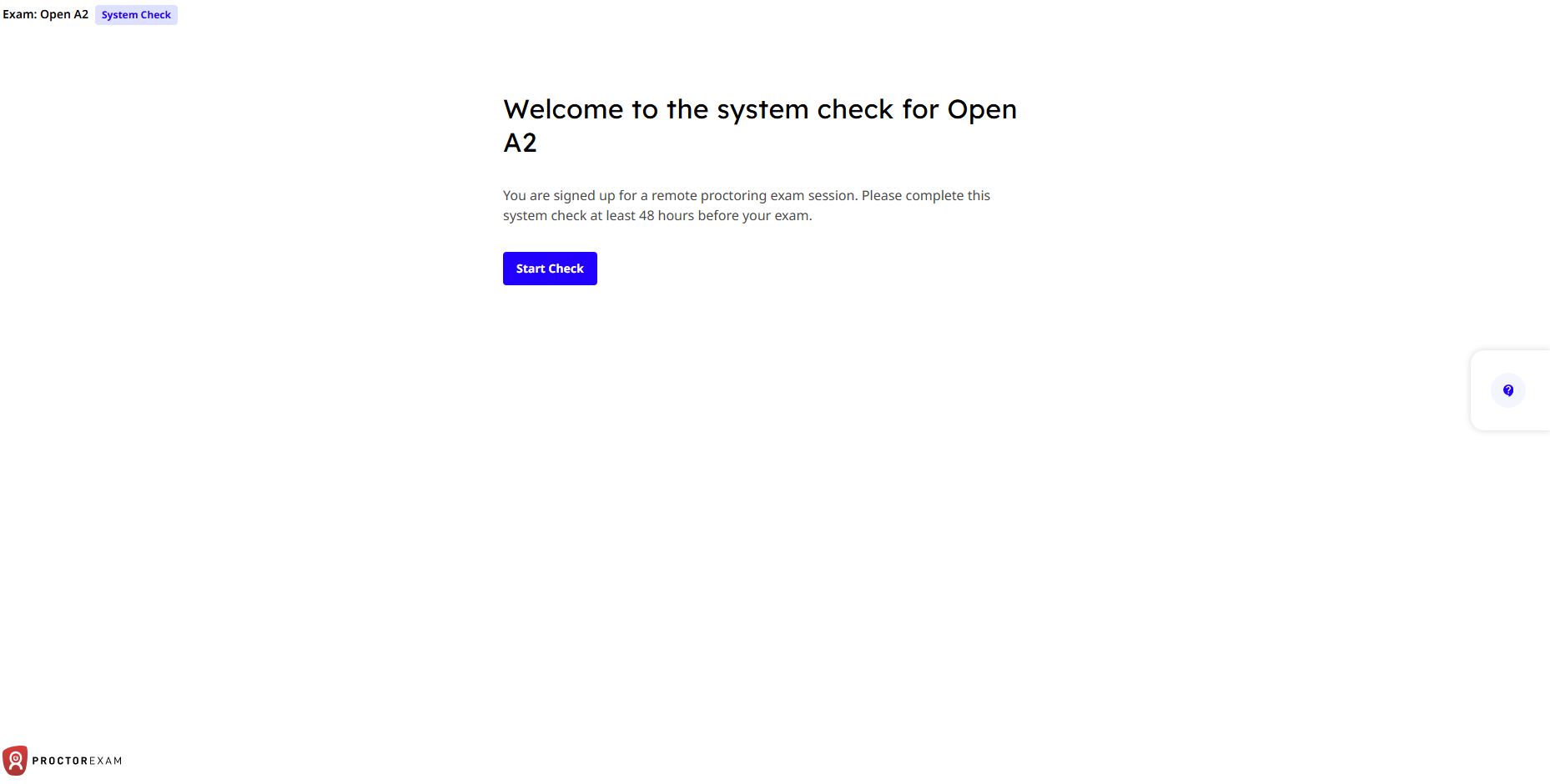
Start Check After clicking on the system check link, you will see the screen below. Click on Start Check.
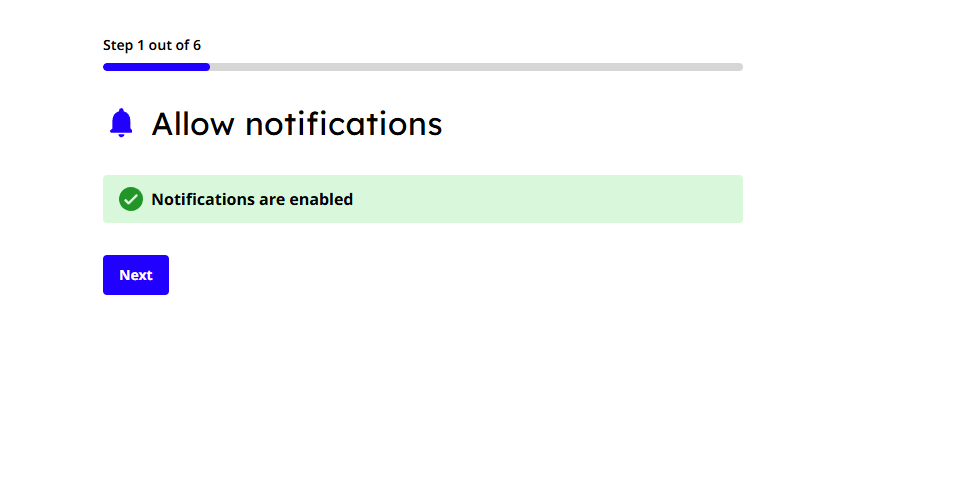
Allow notifications You don't have to do anything here. Wait until the green tick comes into view and click next.
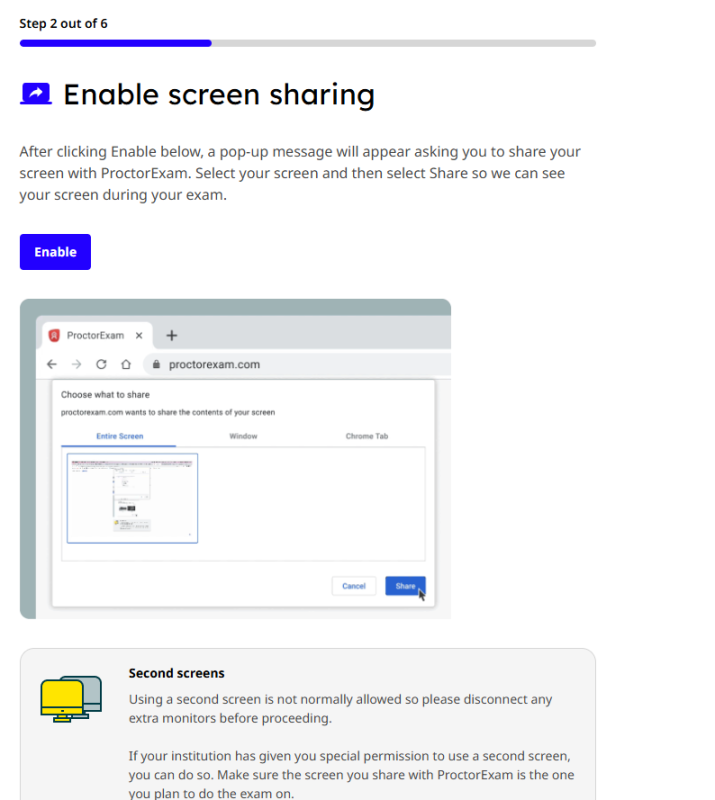
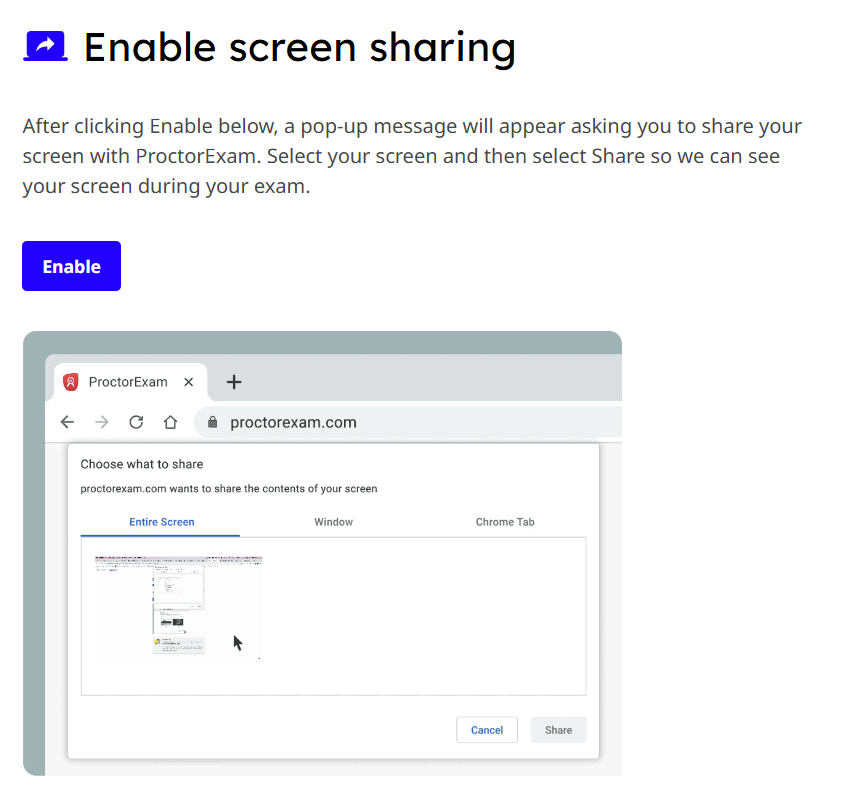
Enable screen sharing After you click Enable, a pop-up message will appear asking you to share your screen with ProctorExam. Select your screen and then click share.
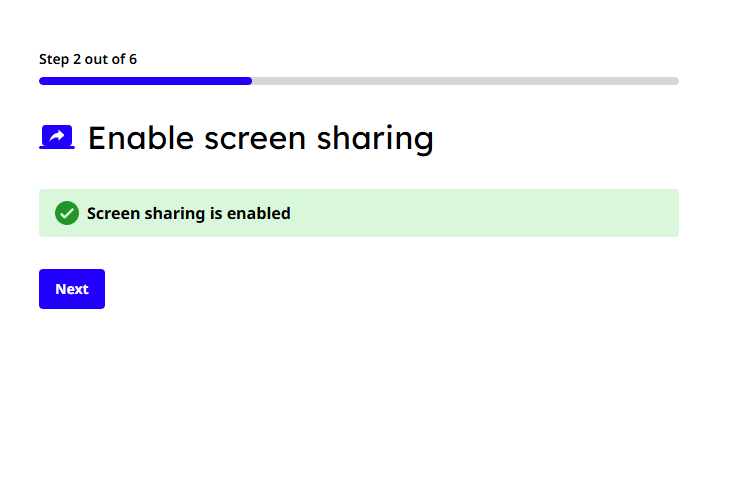
If it went well you will see the screen below, click next.
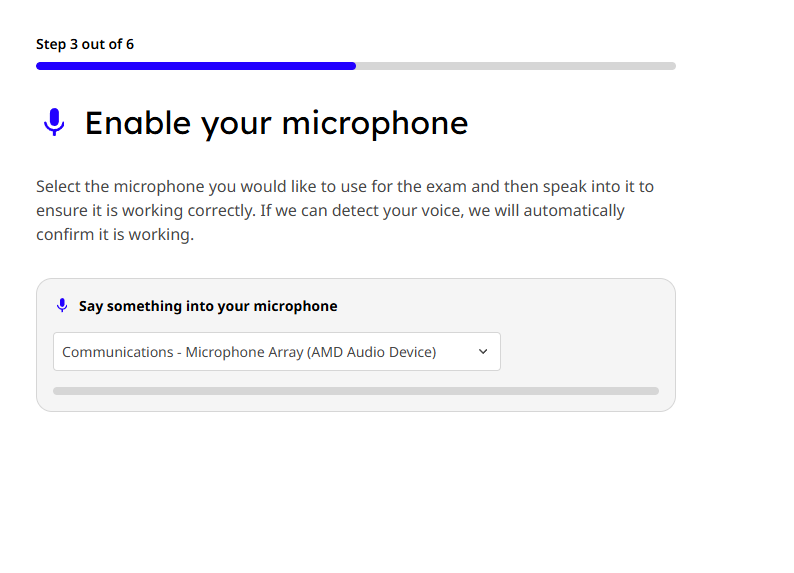
Switch on your microphone Select the microphone you want to use for the exam and then speak in to check if it works. If we hear your voice, we automatically confirm that the microphone is working.
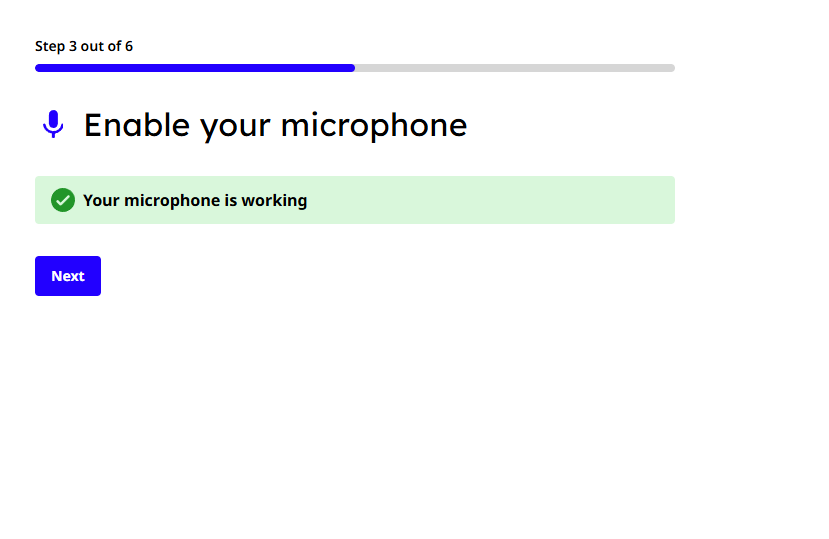
If it went well you will see the screen below, click next.
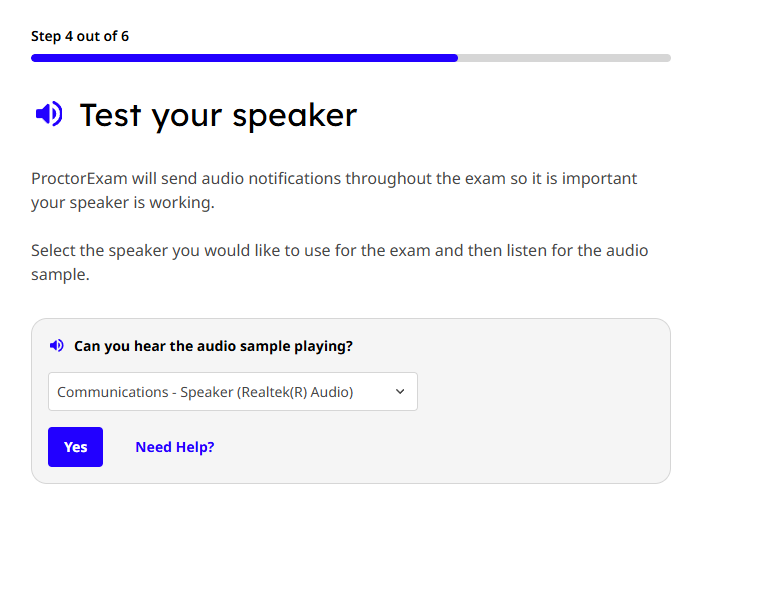
Test the speakers Select the speaker you want to use for the exam and then listen to the audio clip. When you hear the audio clip, click yes.
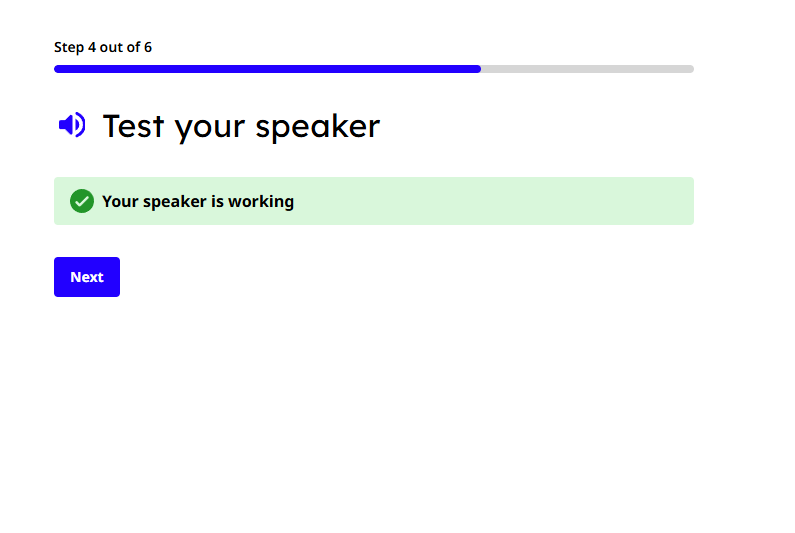
If it went well you will see the screen below, click next.
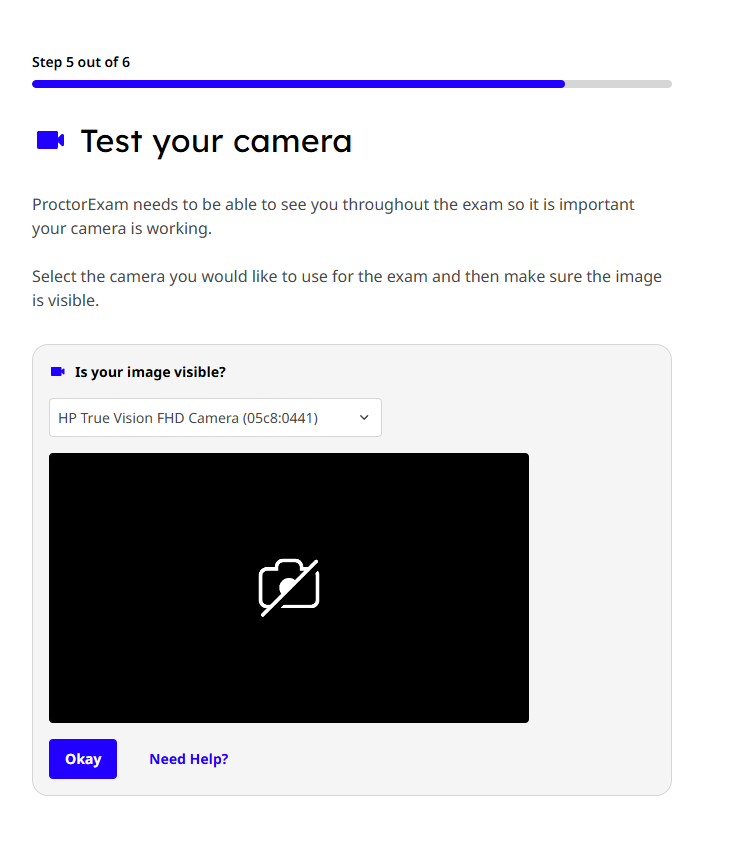
Test your camera ProctorExam you need to be able to see during the exam, so it is important that your camera works. Select the camera you want to use for the exam and make sure you see yourself in the picture. Then click Okay.
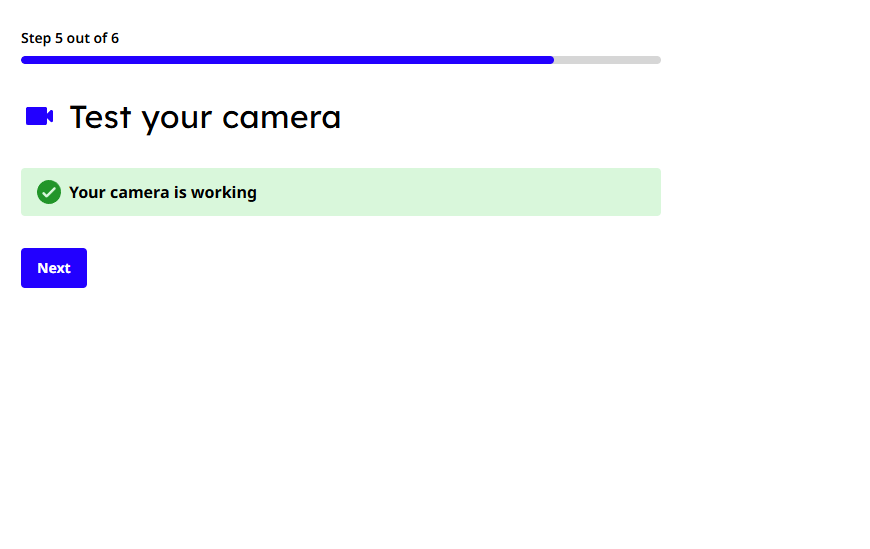
If it went well, you will see the screen below. Click Next.
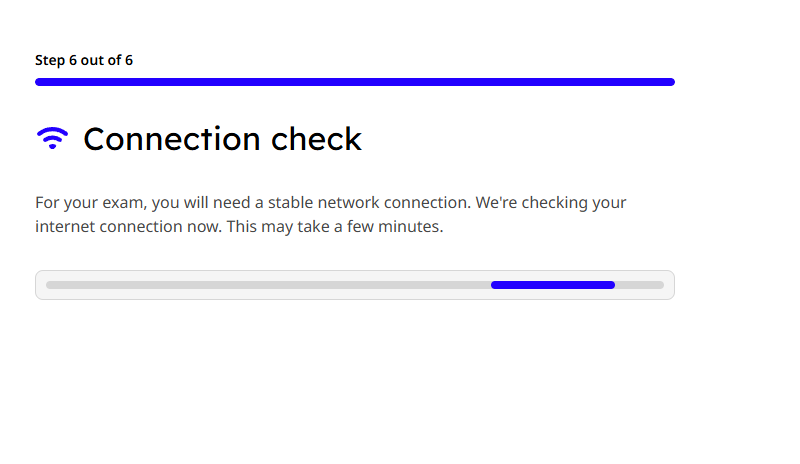
Network Check For the exam, you need a stable internet connection. The internet connection will be checked. This may take a few minutes.
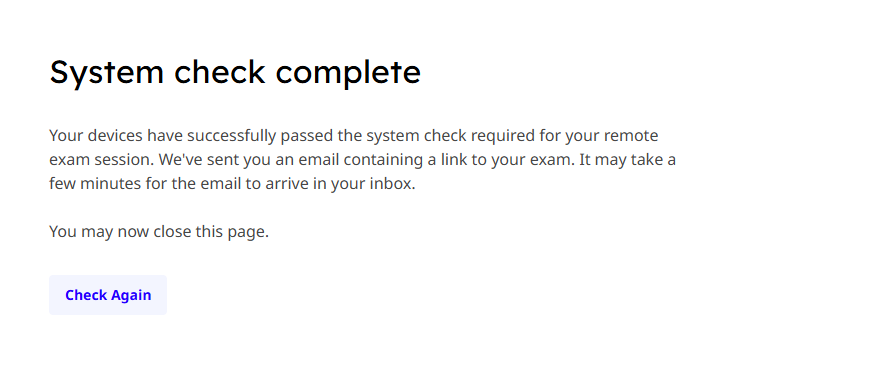
System check complete Your device has successfully passed the system check required for your external exam session. We have sent you an e-mail with a link to the exam. It may take a few minutes for the e-mail to arrive in your mailbox.
You can close this page now.
Exam preparations
Lighting in the room should be sufficiently bright to be considered "daylight quality". Ceiling lighting is preferred. If ceiling lighting is not available, the light source should not be located behind you;
You should be at a desk or table with no objects and the area (surfaces, walls, ceiling, etc.) around your computer should not contain any writing or cheat sheets.
Ensure that no examination aids are present in the room where the examination is being conducted.
You have to be alone in the room;
Your room should be as quiet as possible; no sounds such as music or television are allowed;
Keep your workplace as clean as possible: top etuis away, also food and drinks are not allowed. Only urgent medication is allowed as an exception if you notify the supervisor in advance via chat;
Prevent other people from entering the room while you are taking the exam (e.g. hang a do not disturb note on the outside of the door);
During the exam, toilet visits not allowed;
Make sure your ID card is ready for identification.
The exam
Once you have completed the above system check, you will receive a second e-mail from ProctorExam entitled "You are now ready to take your exam". Herein you will find the link to the real procor exam; this link will only be activated once the system requirements have been approved. Make sure your hardware configuration and internet access during the system check, is identical to the moment of the exam; that way you avoid unexpected situations during the actual exam!
When you log into the ProctorExam exam, you will have some on boarding instructions to complete, including showing your ID card, taking a selfie and sharing your screen, microphone and camera. You will then enter the secure ProctorExam area, where the last step will be to click the URL of the OmniDrones platform. There, you can then take the exam. This is the time to go to the toilet and get ready for the exam.
You have the opportunity to communicate technical problems before and during the exam, as well as thereafter. This can be done via the Techsupport chat function, which connects you to the service desk of the proctoring service provider. English-language communication is preferred here.
During and after the conduct of the exams, the data collected will be further monitored by supervisors for atypical behaviour. The findings will then be reviewed by OmniDrones' authorised staff.
Have you finished going through the exam. Then you can click 'Complete exam' in the ProctorExam window. The session will be saved and closed.
Open the email "Start your exam"
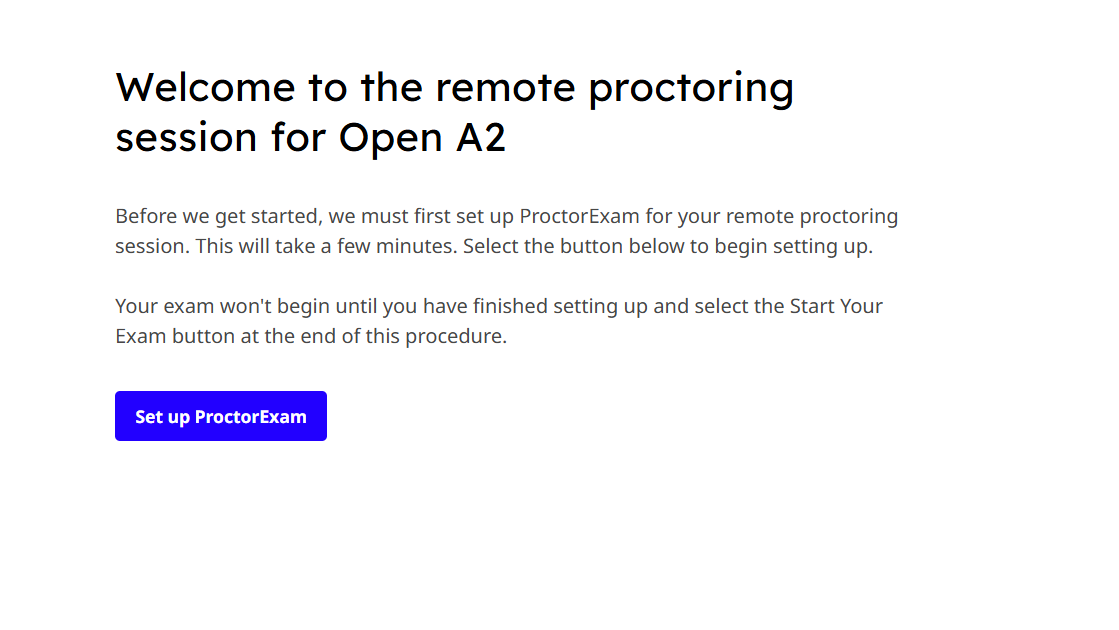
Before we get started, we need to set up ProctorExam for your remote proctoring session. This will take a few minutes. Click Set up ProctorExam to start setting up. Your exam starts only when you finish setting up and press the Start exam button.
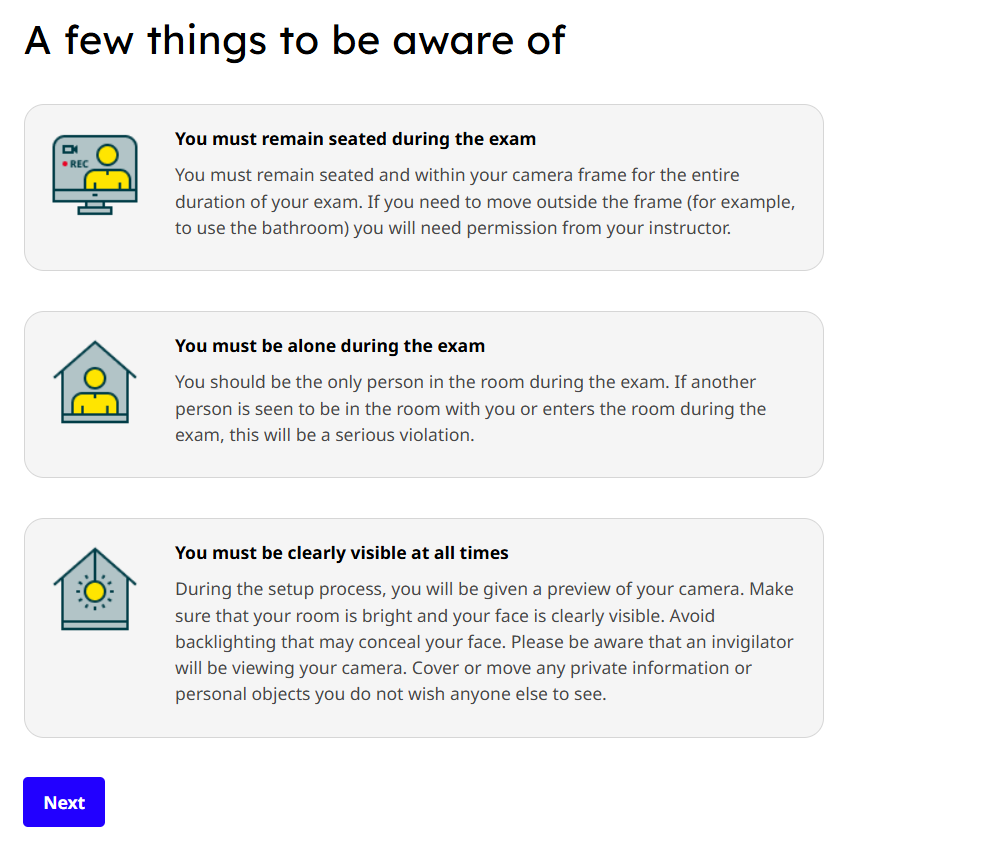
A few things to look out for:
During the exam, you should remain seated
During the exam, you must be alone
You should be visible at all times
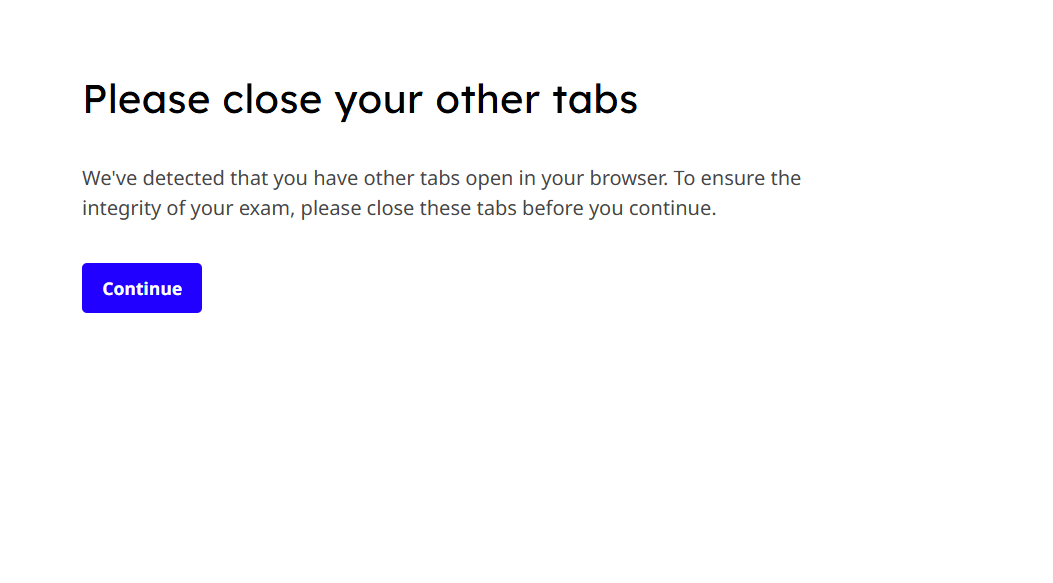
Close all tabs and click continue.
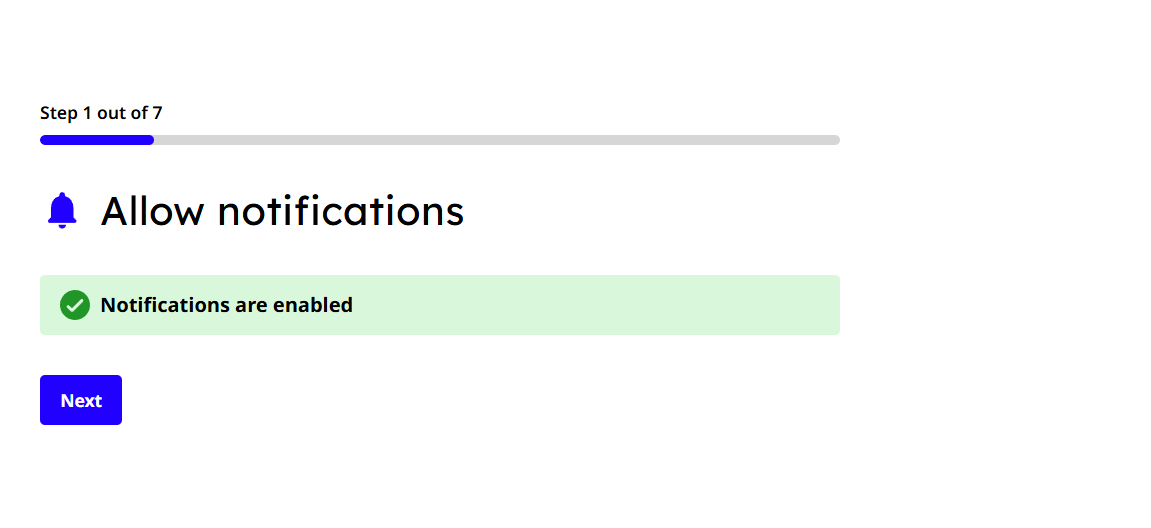
Allow notifications Click next.
Screen sharing After clicking Enable below, a pop-up message will appear asking you to share your screen with ProctorExam. Select your screen and then select Share so that we can see your screen during your exam.
Again, click 'Next step'.
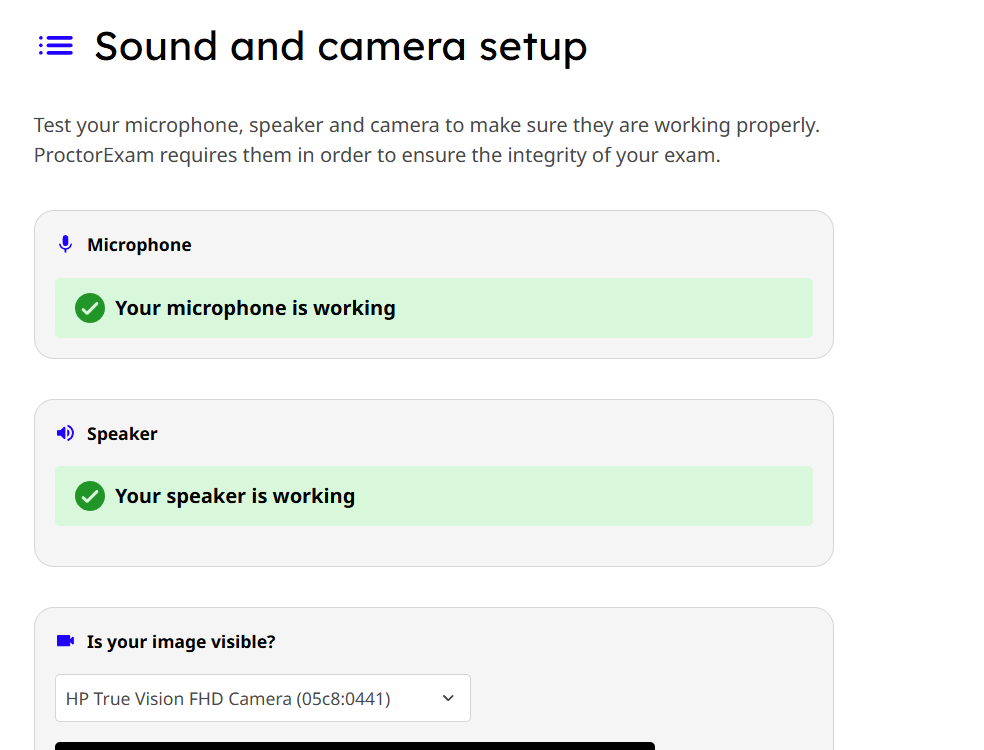
Sound and camera settings Test your microphone, speaker and camera to make sure they are working properly. ProctorExam needs them to ensure the integrity of your exam.
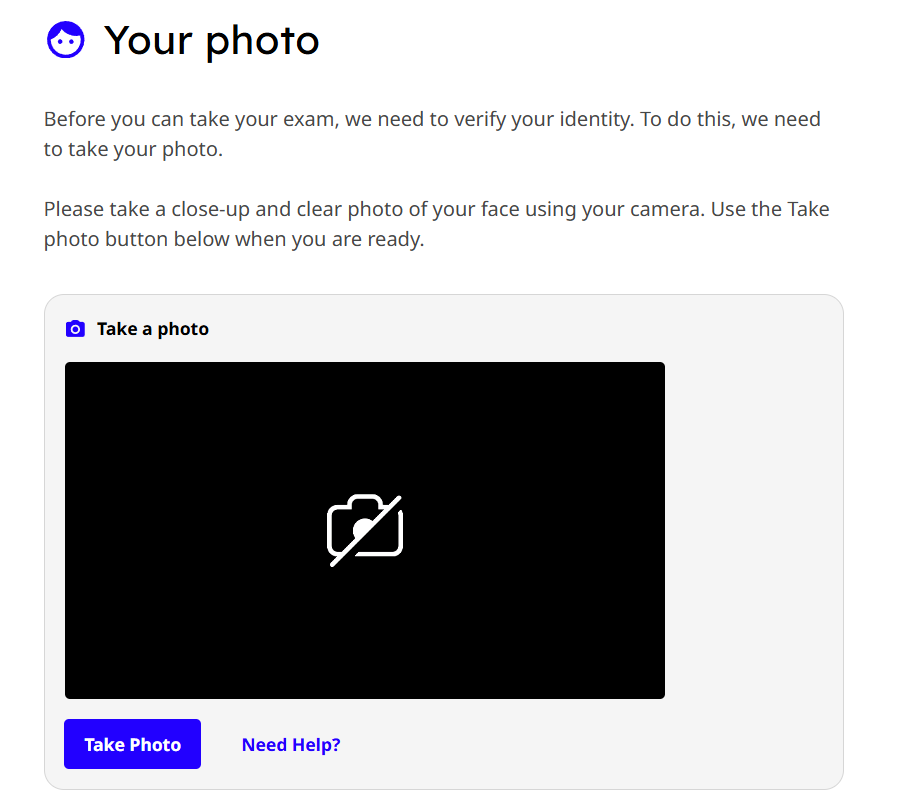
Your photo
Before you can take the exam, we need to verify your first. To do this, you need to take a photo.
Take a close-up of your face using your webcam. Click the Take Photo button to take the photo and click submit.
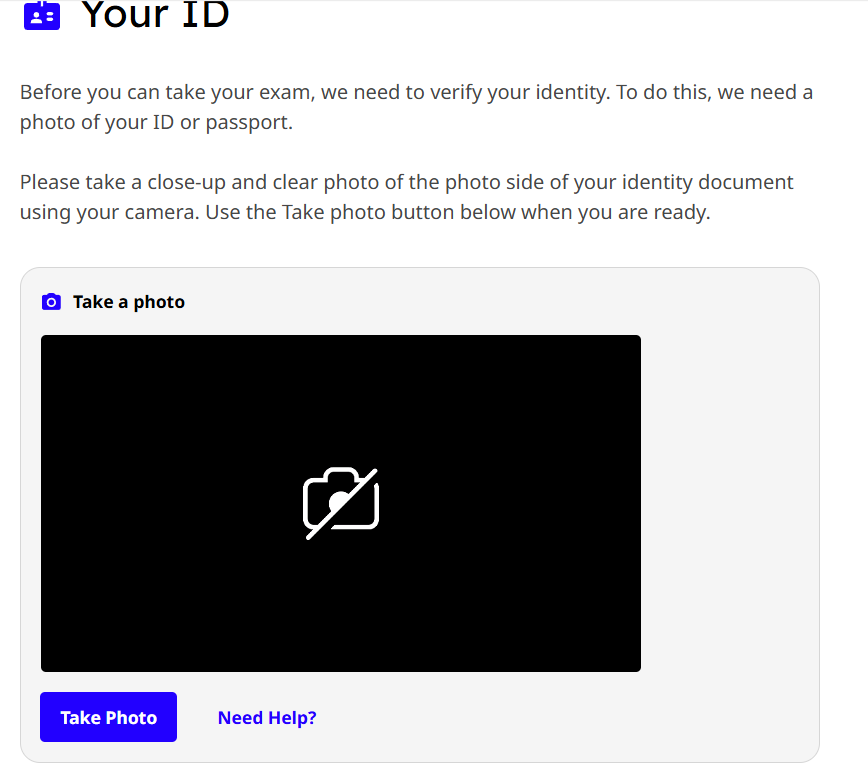
Your ID Before you can take the exam, we need to verify your identity. To do this, we need a photo of your ID proof or passport.
With your camera, take a close-up photo of your ID card. Use the Take Photo button to take the photo and click submit.
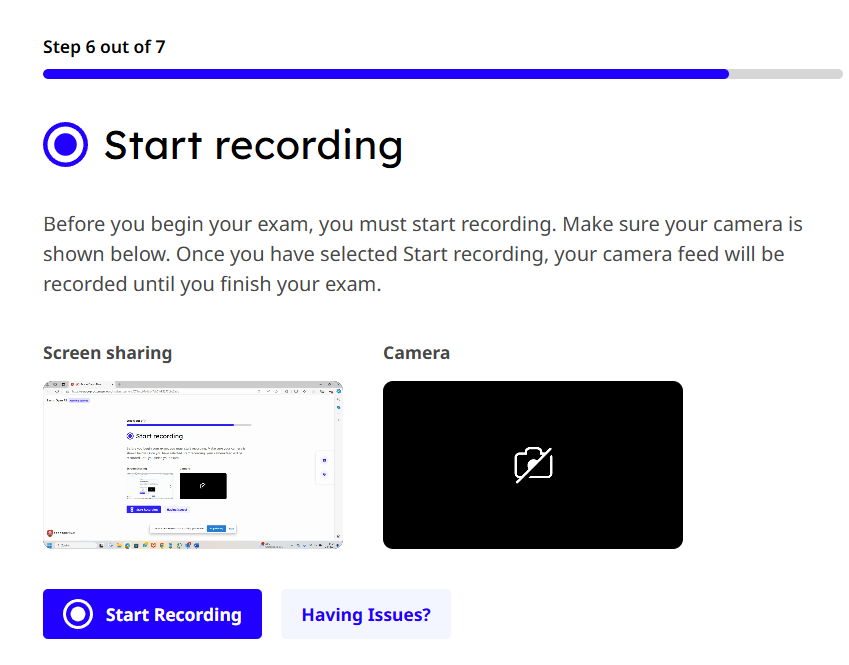
Start recording
Before starting your exam, you need to start recording. Make sure your camera feed is shown below. After you select start recording, your camera feed will be recorded until you finish your exam.
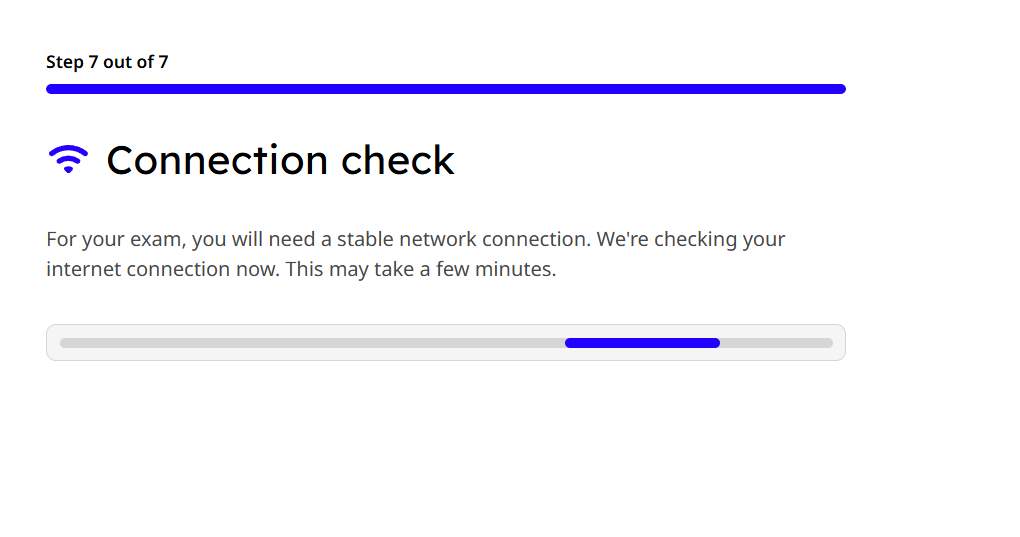
Internet connection For your exam, you need a stable network connection. We are now checking your internet connection. This may take a few minutes.
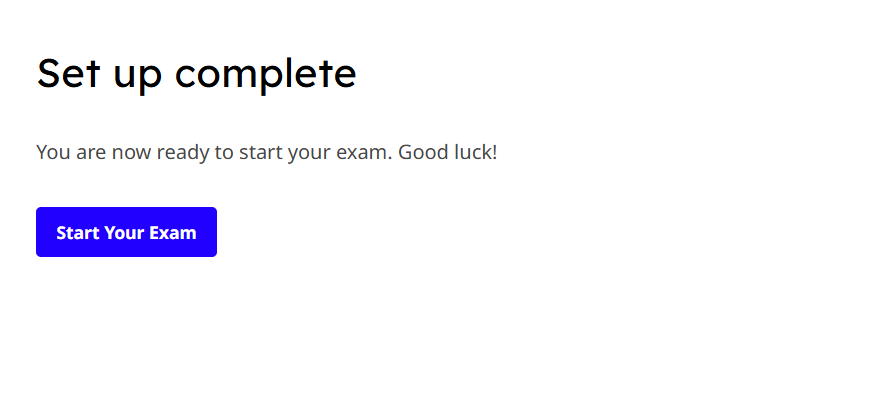
Installation completes You are now ready to start your exam. Good luck!
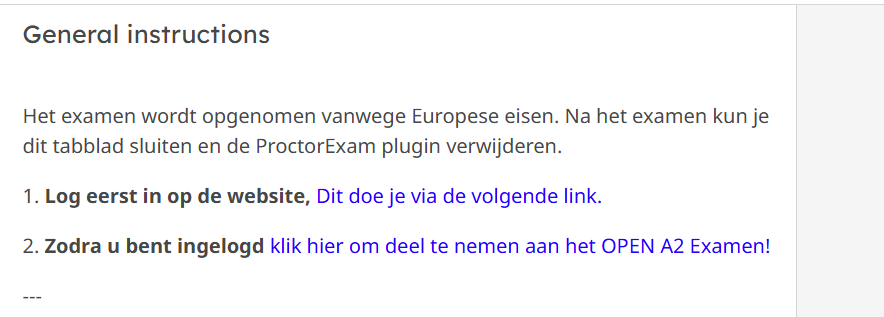
You will then see the screen below. 1. First log in to the website (click on the link) After you have logged in, return to this tab.
And follow the next step: 2. Click here to take part in the OPEN A2 Exam! (click on the link).
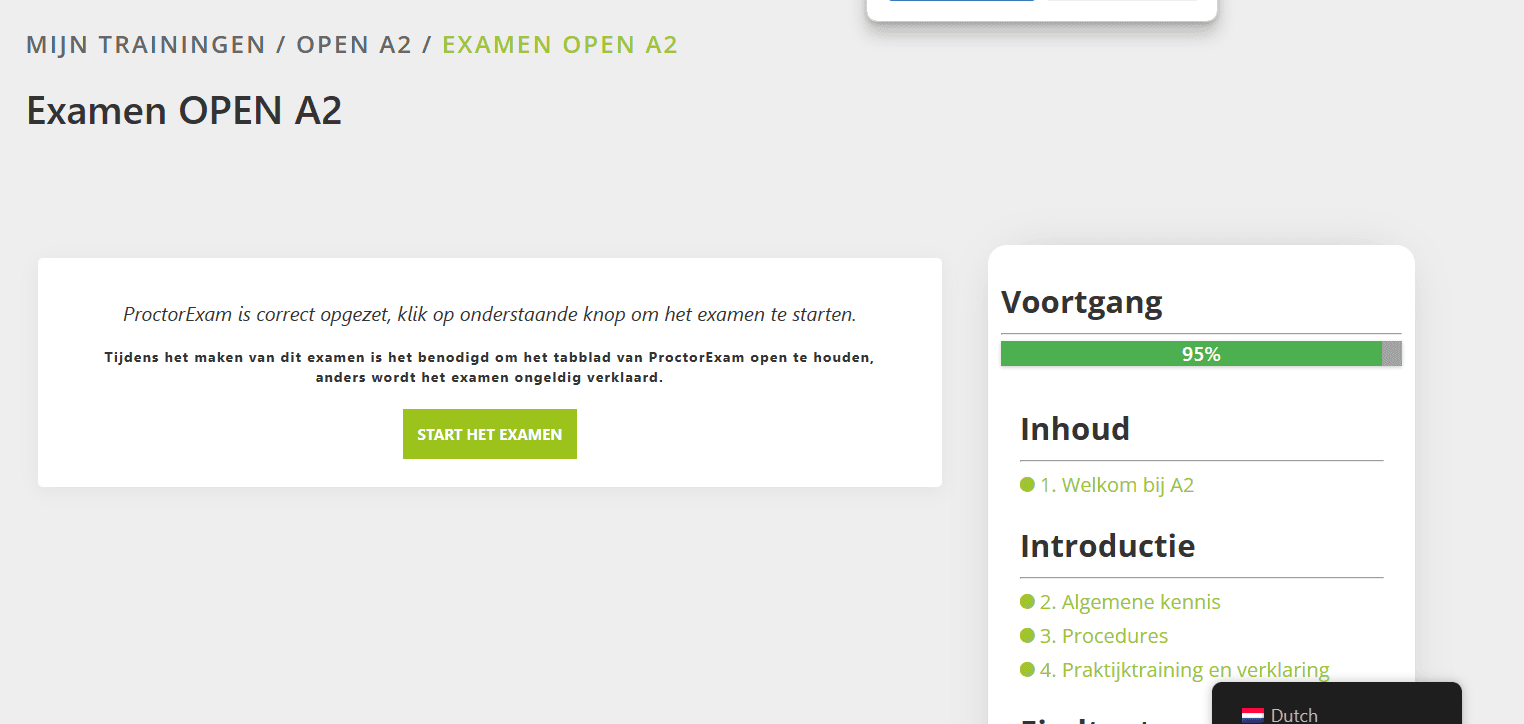
The screen below will open and then click on 'Start the exam'.
Good luck!
To make this website work properly, we use cookies.





 SYS Platform - Website platform voor ambitieuze ondernemers

 Omnidrones
 English
  Dutch
Dutch  German